Showing posts with label Google. Show all posts

Tuesday, August 25, 2020

New Remote Learning Resources from WRHS Learning Commons

Be sure to go to the Technology Tools section of the WRHS Learning Commons Website for the latest resources and tips for using technology in the classroom.


Saturday, February 29, 2020

Google Certified Educator Toolkits

From ShakeUpLearning.com:

Google Certified Educator Toolkits


ICYMI - Need some help preparing for the Level 1 or Level 2 exam?
Grab my free toolkits! These 3-in-1 downloads will give you a breakdown of the knowledge and skills you need to pass the exam, exam tips, and more!

Thursday, June 6, 2019

EDU in 90: Chromebook Tricks

EDU in 90: Chromebook Tricks and More are a few videos with useful tips when using Chromebooks, check them out!


Wednesday, October 10, 2018

Explore feature in Google Docs and Slides


Posted: 09 Oct 2018 02:45 PM PDT
The Explore feature in Google Docs and Slides makes it simple to search for Google Drive files related to whatever you’re currently working on. G Suite users can view images and charts in those files—right from within the Explore panel—and insert them quickly and easily into their document or presentation.


Visit the Help Center for more information on how to use Explore in Google Docs and Slides.

Thursday, August 30, 2018

Google Sites new buttons feature...

Posted: 29 Aug 2018 07:46 AM PDT
We’re making it easy to add buttons to the new Google Sites. These are clickable graphics which link to other content within your site or at an external URL. Users often click on buttons more frequently than they click on in-line hyperlinks, so they are a good way to guide people to important content. For example you could add a “Contact Us” button to encourage users to get in touch with you.

Example of adding a “Contact Us” button to a site 

Buttons will automatically match the color scheme and theme of your site, and can be resized easily through the interface. This will help you:

  • Make your site easier to navigate 
  • Increase the visibility of important links 
  • Keep your site looking consistent and attractive 


Now that you can add buttons with just a few clicks, we hope you’ll be able to more easily create attractive sites which guide users to relevant content. Visit our Help Center to learn more about how to add, edit, or delete buttons. 

Wednesday, August 1, 2018

WRSD Google Technology PD - Summer 2018

Hope you're enjoying our nice sunny days this summer! If the heat is getting to you, come join me to in the MS Library Media Center for the WRSD Google Technology PD workshops...


SUMMER WORKSHOPS TWO-HOUR “Getting Ready for School”
on Google Classroom, Google Sites, and Google Forms.

Take a look at this flyer for details...


PLEASE NOTE:
  • Sessions will run as long as there are at least 5 PARTICIPANTS 
  • We will meet in one of the district’s computer labs or using Chromebooks so all you’ll need to bring is yourself!
  • Email me (mpearson@wrsdsau59.org) and/or sign-up in Professional Growth (aka. MyLearningPlan )

If there’s some other Technology PD you’d like to see, just send me an email at mpearson@wrsdsau59.org with your requests. I look forward to hearing from you!  
Maria E. Pearson, Instructional Technology Specialist


Tuesday, October 17, 2017

4 Must-Have Google Classroom Skills for Teachers


Wednesday, August 16, 2017

New Technology Toolbox


Four GREAT resources to engage and sustain your students in almost any type of classroom situation... Take a look at the New Technology Toolbox featured tools:

https://sites.google.com/view/thetechtoolbox/the-technology-toolbox


Let's get together and plan your next lesson with one of these!

​
Maria
Maria E. Pearson
Instructional Technology Specialist
Winnisquam Regional School District
603.286.4531 x1211

Tuesday, May 23, 2017

The Guide to Google Drive Sharing - FREE eBook!

A Teacher’s Guide to Sharing Files in Google Drive

Do you ever get confused by all the options for sharing in Google Drive and G Suite for Education? I’ve got the guide for you!
This brand new 15-page guide, breaks down the 3 steps to sharing, as well as the 6 levels of sharing in Google Drive applications.
Also learn how to restrict sharing, set expiration dates on sharing, and more!
Google Drive is loaded with great features, but the ability to share and collaborate is truly what sets Google Drive apart from the pack. For experienced users, sharing is second nature; but for new users, it can be difficult to wrap your head around. I decided to update my Guide to Google Drive Sharing.
Shared from Kasey Bell at Shake up Learning

Sunday, January 22, 2017

Individualized work for differentiated learning in Google Classroom


Announcement from Google: https://blog.google/topics/education/new-google-classroom-features-make-it-easier-learn-teach-manage-and-build/ includes differentiating assignments by student or groups of students in Google Classroom.


Maria E. Pearson
Instructional Technology Specialist
Winnisquam Regional School District
603.286.4531 x1211

Thursday, September 8, 2016

New Feature Google Drive Upload, better control of versions...

Google Apps update alerts

Link to Google Apps update alerts

Posted: 06 Sep 2016 07:30 AM PDT
A common use case for Google Drive users is to download a file from their Drive to modify 
it locally, and then to re-upload the new version. In the past, this would result in duplicate 
files (the original and the new one), and users would have trouble finding the latest version. 
That’s why we’re introducing a change in Drive to deduplicate files which were uploaded 
in this way.

Once launched, when users upload files that have the same filename as an existing file, 
they’ll be deduplicated, and the old file will be in revision history. This is so that if any 
mistakes are made, users can get back to the previous version. Similarly, uploaded 
folders will be merged with folders of the same name.

To prevent the files from being deduplicated, click on “Keep as separate file” once it’s been uploaded.


Thursday, April 7, 2016

Turn your Chomebook into a video camera with ClipChamp


Turn your Chomebook into a video camera with ClipChamp, just add it from the Google Web Store:


What's this?


Clipchamp lets you convert, compress and record video files. You can save processed videos or upload them straight to YouTube, Vimeo, Facebook or Google Drive.  
Clipchamp app reduces your input video's file size at no visible quality loss - smaller files upload faster and can be shared more easily. Say goodbye to never-ending uploads.
Clipchamp webcam recorder takes video in SD or HD, depending on the type of your webcam and the oomph of your CPU.

How does it work?

Clipchamp runs in your browser but your videos get processed locally on your computer. This means you don't need to install any software or slowly upload files to an online converter. Your videos stay on your computer until you decide to share them.  
Clipchamp's preconfigured output settings keep things simple. Output formats are MP4, WebM, FLV (Flash video), WMV (Windows Media) & GIF. Resolution options are 240p, 360p, 480p, 720p, 1080p & "same as input file."

You can access ClipChamp directly from the web at https://clipchamp.com/. If you need help installing or using this tool, let me know...
Maria
Maria E. Pearson
Instructional Technology Specialist
Winnisquam Regional School District

Tuesday, August 25, 2015

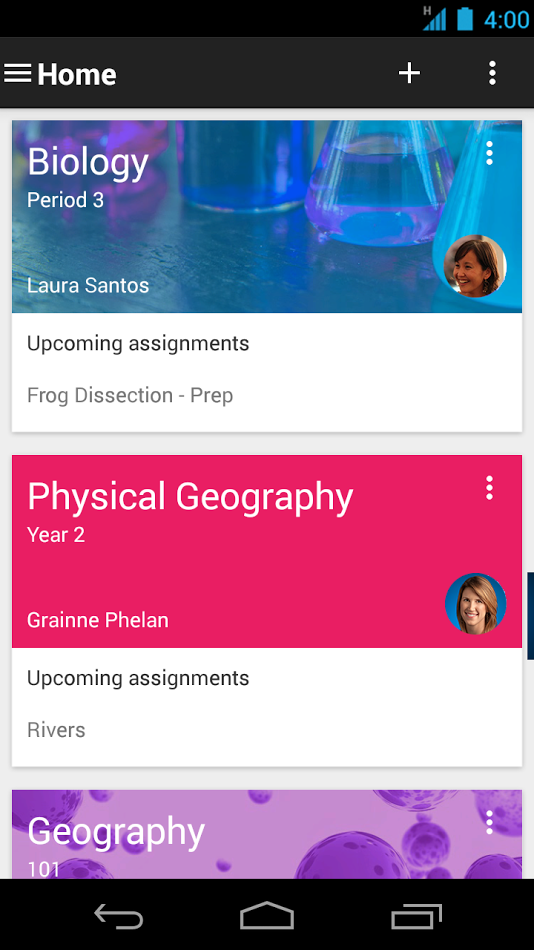
New Features in Google Classroom...

Link to Google Apps update alerts

As many of you know, WRSD is using Google Apps for Education in grades 1 
through 12 this year.  One of the easiest ways to introduce students to this 
integrated environment is through the Google Classroom App.  To go through 
a tutorial on how to set up your virtual classroom in Google, go to 
MPearson@wrsdsau59.org and I can help you get started.

To keep you up to date, I want to share some enhancements to Google 
Classroom that were just released earlier this week.


Posted: 24 Aug 2015 11:51 AM PDT
As teachers gear up for the new school year, we’re adding a number of new features in
Google Classroom to help them save time, engage with students, and keep everyone
organized. Most of these features are rolling out this week, with others coming soon.


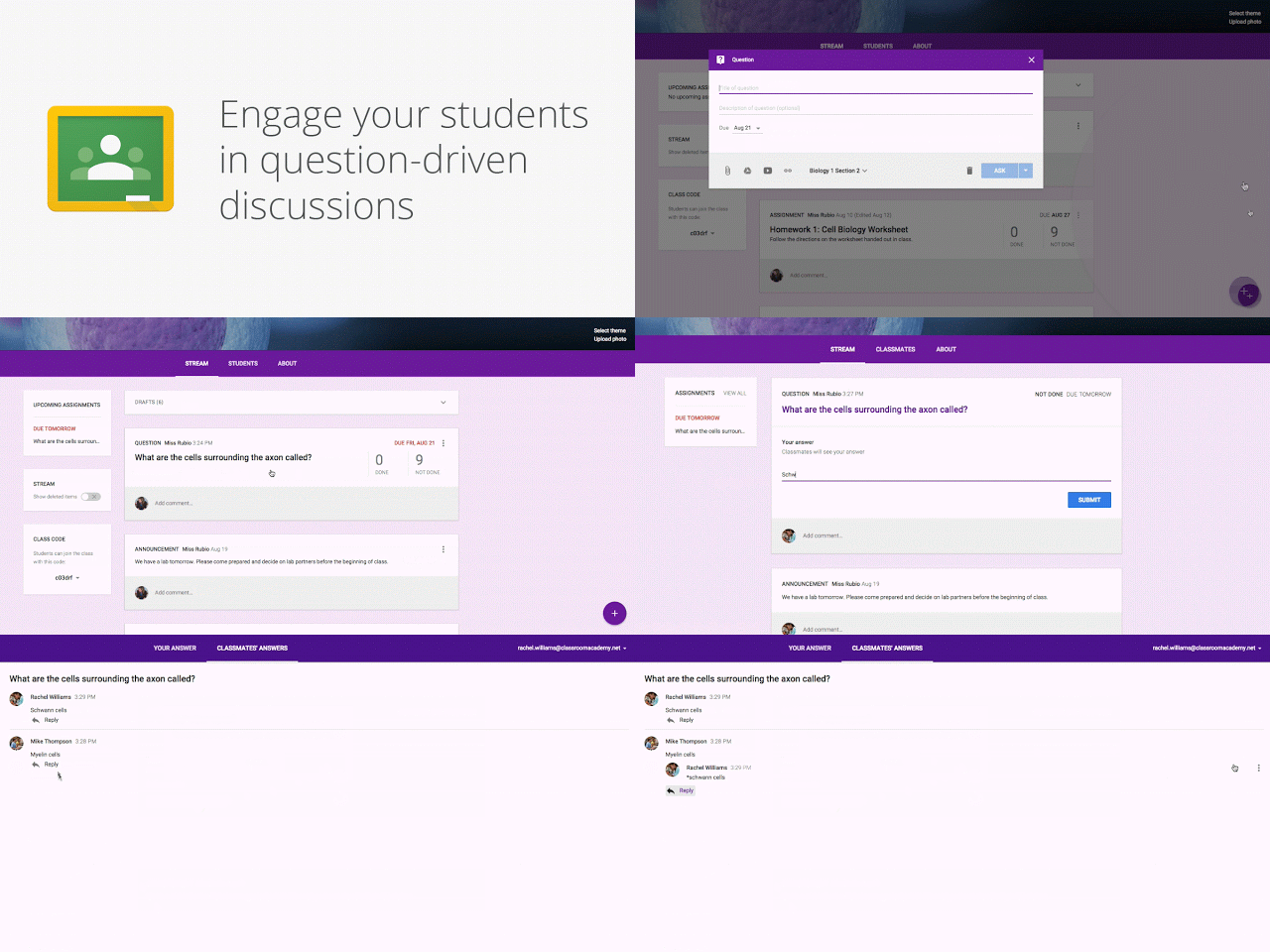
Keep students engaged with question-driven discussions
Since Classroom launched last year, teachers have been using their class stream to host student debates, Q&A, and discussions. Starting today, they’ll be able to do this in a more collaborative way. They can post questions to their class and allow students to have discussions by responding to each other’s answers (or not, depending on the setting chosen). For example, teachers could post a video and ask students to answer a question about it, or post an article and ask them to write a paragraph in response.
TeacherStudentQuestion-04.gif
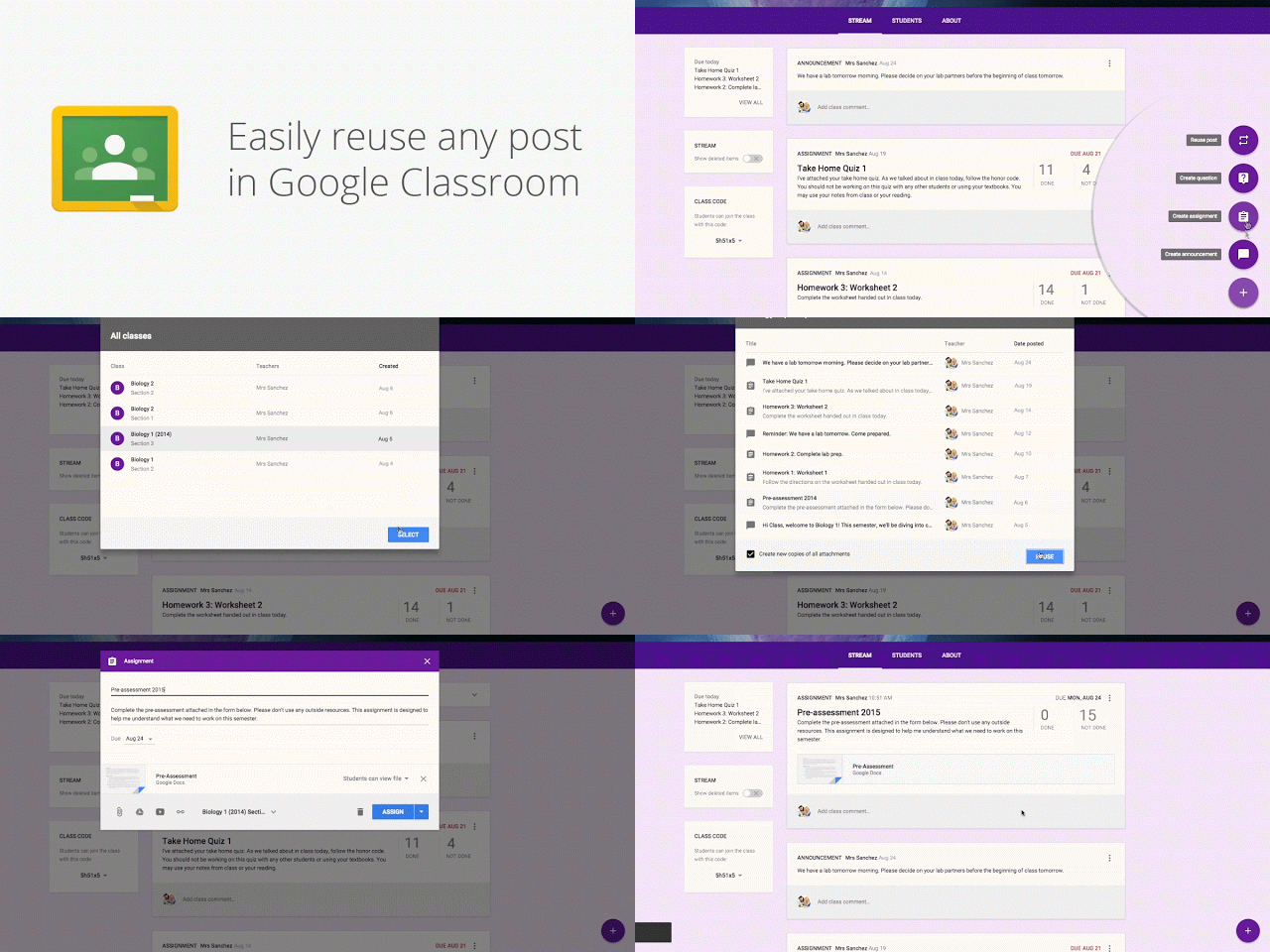
Reuse posts
Teachers can now reuse assignments, announcements or questions from any one of their classes — or any class they co-teach, whether it’s from last year or last week. Once they choose what to copy, they’ll also be able to make changes before posting or assigning it.
ReusePost-05.gif
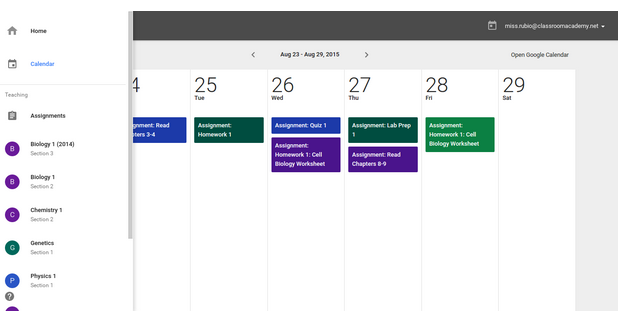
Calendar Integration
In the next month, Classroom will automatically create a calendar for each class in Google Calendar. All assignments with a due date will be automatically added to class calendars and kept up to date. Teachers will be able to view their calendar from within Classroom or on Google Calendar, where they can manually add class events like field trips or guest speakers.
calendar-classroom-integration.png
And a few more improvements based on teacher feedback:

  • Bump a post: When teachers want to make sure an older item is easy for students to find, they can now move any post to the top of the stream. 
  • Due dates optional: For long-term projects or student-driven assignments, teachers will have the option to create assignments that don’t have due dates. 
  • Attach a Google Form to a post: Many teachers have been using Google Forms as an easy way to assign a test, quiz or survey to the class. Coming in the next few weeks, teachers and students will soon be able to attach Google Forms from Drive to posts and assignments, and get a link in Classroom to easily view the answers. 


Friday, May 1, 2015

Google Classroom: Multiple Teachers and Draft Assignments & Announcements


Posted: 21 Apr 2015 09:05 AM PDT from Google Announcements
Google Classroom allows teachers to spend less time on paperwork and more time with their students. Starting today, multiple teachers can work and collaborate in a single Classroom class. With the exception of deleting the class altogether, additional teachers can perform all of the same functions as the primary teacher, including:
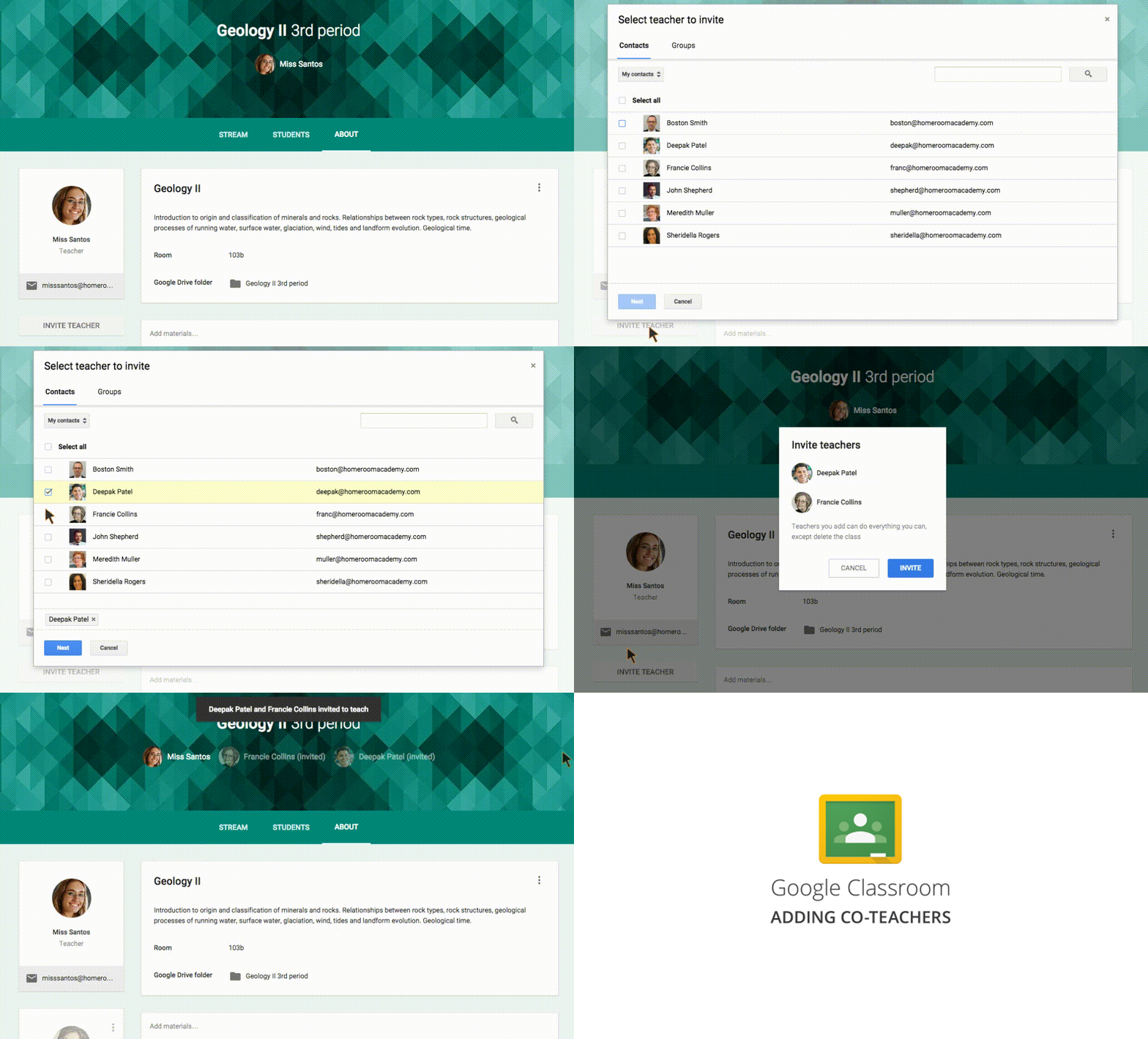
  • Creating assignments and announcements
  • Viewing and grading submissions
  • Participating in comments on the class’ “stream”
  • Inviting students to the class
  • Receiving email notifications related to the class
Screencast-of-Co-Teacher-2.gif
Teachers can also prep for their classes in advance, saving announcements and assignments as “drafts” and waiting to send them until they’re ready. Like in Gmail, once a new announcement or assignment is created, it will be automatically saved as a draft. Those drafts can then be accessed by multiple teachers, making it simple to collaborate on prep work.

Finally, in response to teacher feedback, we’ve made two additional changes that will make Classroom easier to use:
  • Autosaving grades - Grades will now be autosaved as they’re entered, meaning teachers can grade assignments over multiple sessions but still return those assignments to students all at one time.
  • Improved notifications - Teachers and students will now receive email notifications when private messages are left on assignments.

Release track:  
Rapid release and Scheduled release

More information:
Help Center: Invite teachers to a class
Help Center: Draft announcements
Help Center: Draft assignments
Google for Education blog post

Thursday, January 15, 2015

A Classroom mobile app and new desktop options for teachers...

Our next Tech Tuesday, January 20th at 2:45 to 4pm (WRMS Media Center Lab) will be on Google Classroom... Take 2, and will include these features. Go to My Learning Plan to enroll.

Posted: 14 Jan 2015 09:40 AM PST
Today we’re launching a native Classroom mobile app for both Android and iOS to help teachers and students be more collaborative in the classroom and save even more paper and time:

classroom_android.png


New with the mobile app, students and teachers can:
  • Snap a photo: Right from the assignment page in the mobile app, students can snap a photo and attach it to their assignment.
  • Share from other apps: Students can also easily attach images, PDFs and web pages from other apps to their assignments. 
  • Offline caching: Class streams and assignment information are automatically cached every time you open the app with an Internet connection, so that you can see them when you don’t have a connection. 
We’re also launching two new desktop features to help teachers stay organized as they head into the second half of the year: 
  • Teacher Assignments Page: On Classroom for desktop, we’re launching a teacher assignments page, where teachers will be able to get quick access to any assignment, see how many students are done and mark assignments as reviewed.
  • Archive Classes: We also know that classes don’t go on forever —that’s why today we’re launching the ability to archive classes. Archiving a class will remove it from the home page and make it read-only — teachers and class members can still view valuable information in archived classes, but can’t make any changes or turn in assignments.

Hope to see you next week thanks,


Maria
Maria E. Pearson
Instructional Technology Specialist
Winnisquam Regional School District

Thursday, October 23, 2014

Word Clouds in Google Docs

Can't run Wordle or Tagxedo from the Chromebooks?  
Here's an Add-on for Google docs that will let you create "word clouds."

How to access it?
When you have a Google Document open, open the Add-ons menu and search for "tag cloud generator." The Tag Cloud Generator Add-on will create a word cloud in the right-hand margin of any of your Google Documents that contain more than one hundred words.

How to use it in Education?
Maybe you've used a word cloud to introduce a new unit/lesson/concept OR to emphasise the important points in an article or story.  What about students using this tool in their writing? 
Word clouds can help students analyze documents written by others as well as documents of their own creation. By copying the text of a document into a word cloud generator your students can quickly see the words that appear most frequently in that document. Word clouds can also be used to help students see which words that they have frequently used in their own works. Have your students create word clouds of their work during the revision process of writing a story or essay. The word cloud will quickly show students which words they have used the most. Then ask them to think about synonyms for the words that they have used most often in their writings.

Thanks to Natalie Amtmann, science teacher at the high school, for sharing this tool!

If you need any help setting this up, let me know.

Maria
Maria E. Pearson
Instructional Technology Specialist
Winnisquam Regional School District

Thursday, August 28, 2014

10 Tips To Use Google Classroom Effectively

Google Classroom was designed hand-in-hand with Google Apps for Education teachers to help them save time, keep classes organized, and improve communication with students. Google Classroom is now available to all Google Apps for Education schools.

Google Classroom Infographic Best Practices

  1. Kick off in-class discussion when you post topics and questions to the Stream.
  2. Use Google Classroom for any subject and attach relevant videos, websites, documents and more.
  3. Save time at the photocopier when you use the “make a copy for each student” feature.
  4. Upload any file – PDFs, Office files, images – to Google Drive and assign them to students in Google Classroom.
  5. Access Google Classroom from a web browser on any device to stay on top of work at school or on-the-go.
  6. Connect with shy students online through the communication tools in Google Classroom and Google Docs.
  7. Save trees (and money) when you go paperless with Google Classroom.
  8. Share announcements with your whole school by putting all teachers and students in a “class”
  9. Create a class for each subject or learning level and assign different materials to personalize learning.
  10. Set up Google Classroom for younger students who don’t use Gmail by having your admin create Drive accounts for them.


10-Tips-To-Use-Google-Classroom-Effectively-Infographic
Find more education infographics on e-Learning Infographics


For resources on learning Google Classroom go to the website 
WRSD Google Apps PD & Tutorials - Classroom.

Sunday, August 17, 2014

Google Classroom is available NOW at WRSD.

Classroom is a new tool in the Google Apps for Education suite and available for WRSD. It’s designed to give teachers more time to teach and students more time to learn. Classroom is basically a web-based platform for easier management of assignments and projects. With Classroom, teachers can create and organize assignments quickly, provide feedback efficiently, and communicate with their classes with ease and initiate real time discussions. Classroom lets students organize their work in Google Drive, complete and turn it in, and communicate easily with their teachers and peers.  It may well be described as the "classroom of the future." The tool can also allow students to maximize the way they use their Google Chromebooks and other laptops and mobile devices.

How to get started? Go to http://classroom.google.com/ and you will see the screen below.


Let Google know your role as Teacher and then select  SUBMIT   


Now you’re ready to get started!


These are resources that will help you setup your classroom NOW!


If you want a more traditional introduction and help in setting up Google Classroom for your students, I will be conducting Tech Tuesday’s in September to do just that!

  • Tuesday, September 9th (2:45pm HS/MS session & 3:45 Elementary session) &
  • Tuesday, September 22nd (2:45pm HS/MS session & 3:45 Elementary session)

Let me know if you have any questions.
Thanks,
Maria
Maria E. Pearson
Instructional Technology Specialist
Winnisquam Regional School District
603.286.4531  x211