Tuesday, December 30, 2014

Great Websites for Kids

Take a look at the many websites evaluated and rated for kids.  They are categorized by subject and further filtered within the subject.  Thanks for sharing Jessie Ahlgren from Sanbornton Central!


Home


http://gws.ala.org/
Sponsored by the ASSOCIATION FOR LIBRARY SERVICE TO CHILDREN, a division of the American Library Association.


"Great Websites for Kids is a compilation of exemplary websites geared to children from birth to age 14. Suggested sites are evaluated by the Great Websites for Kids Committee using established selection criteria. The committee is made up of members of the Association for Library Service to Children, a division of the American Library Association. Newly evaluated and accepted sites are added to the database three times a year. The committee also reviews all sites within the database twice a year to guarantee sites are still relevant, appropriate and accessible."

Happy New Year!
Maria E. Pearson
Instructional Technology Specialist
Winnisquam Regional School District
603.286.4531  x211

Saturday, December 6, 2014

The Hour of Code is HERE!

The Hour of Code is HERE!
We live in a world surrounded by technology. And we know that whatever field our students choose to go into as adults, their ability to succeed will increasingly hinge on understanding how technology works. But only a tiny fraction of us are learning computer science, and less students are studying it than a decade ago.
That’s why our schools are joining in on the largest learning event in history: The Hour of Code, during Computer Science Education Week (Dec. 8-14). Last year, 15 million students tried computer science in one week. This year, we're joining students worldwide to reach 100 million students!
Our Hour of Code is a statement that WRSD is ready to teach these foundational 21st century skills. To continue bringing programming activities to students, we want to make our Hour of Code event huge. WRSD students in grades K through 8 will be participating within their Computer Technology classes, and 9-12 will have the opportunity to explore while in many of their seminar and core classes.
For more details, go to Hour of Code (http://hourofcode.com/us) to try it out yourself, or why not with your class.  Also, try the activities offered by Google's Made with Code (https://www.madewithcode.com/) including how to use code to light up the one of the trees in our nation's capital.
Explore and have fun!


Maria
Maria E. Pearson
Instructional Technology Specialist
Winnisquam Regional School District

Infographic version:

Thursday, November 6, 2014

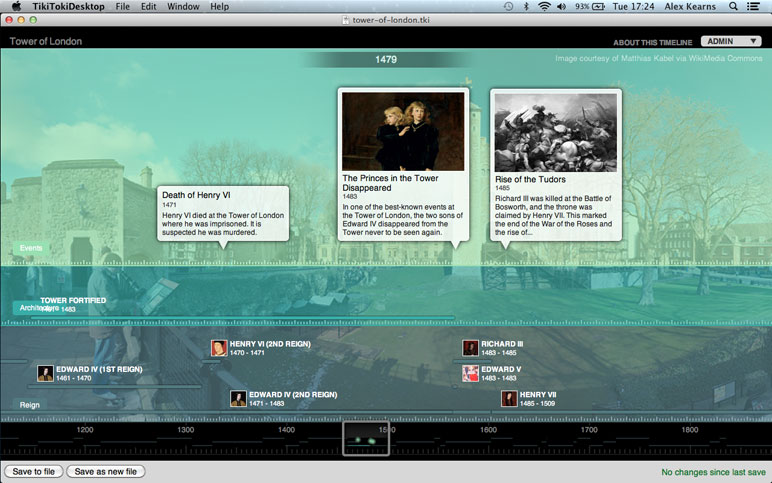
Online Interactive Timeline Maker!


Create beautiful timelines
Tiki-Toki is web-based software for creating beautiful interactive timelines that you can share on the Internet.  (http://www.tiki-toki.com/)
  • Nothing to download - Tiki-Toki works in your browser. Sign up for a free account and you can start creating a timeline.
  • Stunning 3d timelines - No other online timeline maker allows you to view your timelines in 3D.
  • Include images and videos - Tiki-Toki provides integration with not only text and images but YouTube and Vimeo for videos as well.
  • Share timelines with anyone - Each timeline you create has its own unique url that you can send to teachers and friends.
  • Colours and categories - Tiki-Toki allows you to create different categories for stories (events) and colour code them. Many customizable features in your timeline.

A creative tool for students to pull together multimedia with their research. I took a 5th grade student's PowerPoint, which was his culminating project for his research, and pulled out his research notes, images and added video to make the following interactive timeline.  (This only has a few entries but it was quick, 10 minutes and very easy to do) http://www.tiki-toki.com/timeline/entry/333303/The-Life-of-Jackie-Robinson/
This works great on the Chromebooks, too!
Maria
Maria E. Pearson
Instructional Technology Specialist
Winnisquam Regional School District

Thursday, October 30, 2014

XtraMath.org... Online Math Facts Practice for ALL your students

Keep your students engaged and making progress on learning their math facts!

XtraMath.org is an AWESOME site to help students master their basic math facts... supports addition, subtraction, multiplication and division.  Xtramath is very easy to use and is set up in such a way that your students can practice at school as well as at home!  Brenda Lawrence, Southwick teacher,  uses this website with her 4th grade class.  From the teacher perspective, you have access to all of your students' progress records from both school AND home. It is a great way to watch each child's progress. The reports are easy to read and easy to access as well. Each week you will receive an email report showing how your kiddos are doing as well. Super cool! If you haven't tried this site out with your class, it comes HIGHLY recommended. You won't be disappointed!

Thanks Brenda for contributing!
 

Go to https://xtramath.org/ to get started online or there's also an App for XtraMath!

Maria
Maria E. Pearson
Instructional Technology Specialist
Winnisquam Regional School District
603.286.4531  x211

Thursday, October 23, 2014

Word Clouds in Google Docs

Can't run Wordle or Tagxedo from the Chromebooks?  
Here's an Add-on for Google docs that will let you create "word clouds."

How to access it?
When you have a Google Document open, open the Add-ons menu and search for "tag cloud generator." The Tag Cloud Generator Add-on will create a word cloud in the right-hand margin of any of your Google Documents that contain more than one hundred words.

How to use it in Education?
Maybe you've used a word cloud to introduce a new unit/lesson/concept OR to emphasise the important points in an article or story.  What about students using this tool in their writing? 
Word clouds can help students analyze documents written by others as well as documents of their own creation. By copying the text of a document into a word cloud generator your students can quickly see the words that appear most frequently in that document. Word clouds can also be used to help students see which words that they have frequently used in their own works. Have your students create word clouds of their work during the revision process of writing a story or essay. The word cloud will quickly show students which words they have used the most. Then ask them to think about synonyms for the words that they have used most often in their writings.

Thanks to Natalie Amtmann, science teacher at the high school, for sharing this tool!

If you need any help setting this up, let me know.

Maria
Maria E. Pearson
Instructional Technology Specialist
Winnisquam Regional School District

Friday, September 26, 2014

Spark 101 - STEM Resource for the Classroom

Looking for a free resource to engage your students in real-world problem solving and build 21st century skills?

Looking for ways to ignite student interest in STEM?  Or bring real-world problems from industry into your classrooms?  Look no further than Spark 101—a free resource designed by teachers for teachers.  Ten-minute, scenario-based videos—presented by dynamic industry professionals—can help you facilitate student problem solving in almost any secondary STEM classroom. 


See upcoming Webinars listed below:


Free Spark 101 "Best Practices" sessions for Fall 2014.Register for our upcoming national Spark 101 “best practices” webinars.
  • Thursday, November 13, 2014: Online from 7:30 to 8:30 p.m. EST Register here.
  • Tuesday, November 18, 2014: Online from 7:30 to 8:30 p.m. EST Register here.
  • Thursday, December 4, 2014: Online from 7:30 to 8:30 p.m. EST Register here.
See more at: http://www.spark101.org/educator-resources/#sthash.ZqGdzCbM.dpuf


Thursday, August 28, 2014

10 Tips To Use Google Classroom Effectively

Google Classroom was designed hand-in-hand with Google Apps for Education teachers to help them save time, keep classes organized, and improve communication with students. Google Classroom is now available to all Google Apps for Education schools.

Google Classroom Infographic Best Practices

  1. Kick off in-class discussion when you post topics and questions to the Stream.
  2. Use Google Classroom for any subject and attach relevant videos, websites, documents and more.
  3. Save time at the photocopier when you use the “make a copy for each student” feature.
  4. Upload any file – PDFs, Office files, images – to Google Drive and assign them to students in Google Classroom.
  5. Access Google Classroom from a web browser on any device to stay on top of work at school or on-the-go.
  6. Connect with shy students online through the communication tools in Google Classroom and Google Docs.
  7. Save trees (and money) when you go paperless with Google Classroom.
  8. Share announcements with your whole school by putting all teachers and students in a “class”
  9. Create a class for each subject or learning level and assign different materials to personalize learning.
  10. Set up Google Classroom for younger students who don’t use Gmail by having your admin create Drive accounts for them.


10-Tips-To-Use-Google-Classroom-Effectively-Infographic
Find more education infographics on e-Learning Infographics


For resources on learning Google Classroom go to the website 
WRSD Google Apps PD & Tutorials - Classroom.

Sunday, August 17, 2014

Google Classroom is available NOW at WRSD.

Classroom is a new tool in the Google Apps for Education suite and available for WRSD. It’s designed to give teachers more time to teach and students more time to learn. Classroom is basically a web-based platform for easier management of assignments and projects. With Classroom, teachers can create and organize assignments quickly, provide feedback efficiently, and communicate with their classes with ease and initiate real time discussions. Classroom lets students organize their work in Google Drive, complete and turn it in, and communicate easily with their teachers and peers.  It may well be described as the "classroom of the future." The tool can also allow students to maximize the way they use their Google Chromebooks and other laptops and mobile devices.

How to get started? Go to http://classroom.google.com/ and you will see the screen below.


Let Google know your role as Teacher and then select  SUBMIT   


Now you’re ready to get started!


These are resources that will help you setup your classroom NOW!


If you want a more traditional introduction and help in setting up Google Classroom for your students, I will be conducting Tech Tuesday’s in September to do just that!

  • Tuesday, September 9th (2:45pm HS/MS session & 3:45 Elementary session) &
  • Tuesday, September 22nd (2:45pm HS/MS session & 3:45 Elementary session)

Let me know if you have any questions.
Thanks,
Maria
Maria E. Pearson
Instructional Technology Specialist
Winnisquam Regional School District
603.286.4531  x211

Thursday, July 17, 2014

Have you registered your account with the new FOSSweb 2.0?


Many of you may have already registered your account with the new FOSSweb 2.0 online resources.  If you haven't, these Account Registration instructions will guide you through the process.  Let me know if you need any additional assistance.
Thanks,

Maria 
Additional FOSS guides: Setting up Class Accounts

Maria E. Pearson
Instructional Technology Specialist
Winnisquam Regional School District
603.286.4531  x211

Wednesday, June 18, 2014

New way to set-up gClassFolders, through spreadsheet Add-ons!

If you have used gClass Folders (gCF) this year, there is a new way to set-up your classes... it's now an Add-on in spreadsheets. 
  1. Simply open a new spreadsheet and select "Add-ons" from the task menu, then "Get Add-ons." 
  2. Now search "gClass Folders" and select +Free to add this add-on.
  3. When the request permission pop-up appears, select Accept . 
  4. Now you can follow the steps for setting up your classes as before OR if you are New to gClass Folders, take a look at the tutorial (http://www.gclassfolders.com/tutorial)
You are now ready to set-up your summer school or next years' classes!

Friday, May 30, 2014

WRSD ICT Integration Five Year Plan

WRSD ICT Integration Five Year Plan

The WRSD Information, Communication, and Technology (ICT) Integration Five Year Plan outlines the mission and vision for the integration of curriculum and instruction, implementation of resources and needs for effective communication and collaboration to support our 21st Century learning environments. 


WRSD ICT Integration Five Year Plan Summary

Wednesday, May 7, 2014

Project Based Learning supported by Google Apps


Many of our WRSD classroom teachers are exploring project-based learning opportunities for students by encouraging multimedia projects. There are several aspects of Google Docs, Drive and Forms that can help organize and manage such projects effectively for teachers and students.


In his blog post below, Craig Leach from Common Sense Graphite, shares examples and templates for managing multimedia projects in the classroom, fosters group work through the collaborative nature of shared resources and promotes student peer assessment using online surveys.

Google Puts the “G” in Group Work


If you're interested in a project like this for your students, just let me know and we can make it happen together!


Maria
Maria E. Pearson
Instructional Technology Specialist
Winnisquam Regional School District
603.286.4531  x211

Wednesday, April 30, 2014

Check out this great math instructional resource for school and at home!

If you like Kahn Academy for math instructional tutorials, you'll really like this new online resource...


Virtual Nerd’s real math help tutorial system provides in-context information, hints, and links to supporting tutorials, synchronized with videos, each 3 to 7 minutes long.  Content support from middle school math to Algebra 2 and is align to Common Core standards.  Additionally, content is aligned to SAT and ACT math topics.

Virtual Nerd was originally developed as a supplemental learning resource for teachers and students, with a focus on middle school and high school mathematics.  The extensive library of instructional videos is available at no charge thanks to the support of Pearson Education.

Math teachers, this is a must have in your students’ resource tool box!

Sunday, April 6, 2014

A Video Guide to Using the Google Drive iPad App

This is a repost from Richard Byrne's blog, "'iPad Apps for Schools"

iPad Apps for School

A Video Guide to Using the Google Drive iPad App

Google_Drive_Logo_lrg-580x461Last Friday I was asked if I could share instructions for teachers and students using the latest version of the Google Drive for iPad app. I’m in the process of organizing all of my screenshots into a PDF. In the meantime, I have the following video overview of how to use the basic features of Google Drive iPad. At the end of the video I offer a tip about using multiple sign-in on shared iPads.

Thursday, April 3, 2014

ThinkCentral student log-ins and classes.

Just wanted to let you know I have creating student accounts (K-5) in ThinkCentral for all three schools.  To provide consistency, their username and password is the same as their active directory log-in for computers (For example username:21pearsonm password:21001)  I did NOT assign students to specific classes for you since some grades do flexible groupings in math and reading.  To do this, you must log into ThinkCentral (https://www-k6.thinkcentral.com), if you have problems or don't remember your login, please e-mail me and I can reset your password. 

Once you are logged into ThinkCentral, you can follow the directions I have attached to create your classes and assign students with their activities.  There is also an attachment that shows how students will access and log in. To help you further, I have provided links below to several online tutorials that take you through the process of setting up your classes, but also other activities for those who want to keep going.l.  

Video tutorials are available for support. Note: It is recommended that these videos be played in order.

I am in the process of customizing a template letter for you, that can be sent to parents with student information on logging into Think Central and how to use it.  

In April, I am looking at providing some hands-on after-school working sessions (At each school) on "Let's ThinkCentral together." Don't let this keep you from getting started, many of you are familiar with these resources since you have used them with Storytown.  Keep me posted as to how you get along with these resources and I'll let you know what's coming.

Thanks for your support,


Maria
Maria E. Pearson
Instructional Technology Specialist
Winnisquam Regional School District